Posts

Showing posts with the label Windows

Run Windows 10 on Mac using an external SSD/USB drive
Image
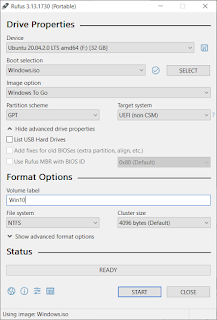
This article shows how you could get a Windows 10 run on Mac using an external SSD/USB drive. I use a Macbook Pro 2020 13 inch to check the procedure. On your Mac, start "Boot Camp Assistant". In the menu bar, Click on "Action" -> "Download Windows Support Software". Have the software downloaded to a storage location for example a USB drive. Shut down your Mac. Use a Windows machine to download Windows 10 ISO at https://www.microsoft.com/en-us/software-download/windows10. Use the Rufus tool available at https://rufus.ie/ to create a Windows 10 USB-to-Go SSD/USD drive.  Once the action is completed, copy the Windows Support Software folder you get in the previous step to root folder of the Windows 10 USB to Go SSD/USD drive. Insert the USB-to-Go SSD/USD drive to your Mac, together with a USB keyboard and a USB mouse. Turn on the Mac with the "Option" key held. Then you could select which drive to boot in. Select the EFI one. Follow the on-scree...
Remove unwanted entry in UEFI BIOS boot menu

If your original OS is installed in UEFI mode, the installation of some other OS (e.g Ubuntu) in UEFI mode later on introduces some artifacts to the EFI partition the hard drive, and due to them, in the UEFI BIOS boot menu you see the respective boot menu entry. To remove the entry completely, you need to remove the artifacts to the EFI partition, and then move the respective boot entry. Delete EFI/distro of the EFI partition Linux Locate your EFI partition with sudo fdisk -l and find out the partition with EFI Partition under the Type column. Suppose the EFI partition is /dev/sda2 , do the following to mount it on an empty folder. mkdir /mnt/efipart mount /dev/sda2 /mnt/efipart Next find the directory corresponding to the OS that you have installed. It is mostly under EFI/ distro_name Remove that directory and its contents by sudo rm -r EFI/distro_name . Windows Start cmd.exe as administrator. Run diskpart in it. Microsoft Windows [Version 10.0.14393] (c) 20...

Time change due to Windows-Ubuntu dual boot

This happens because Windows thinks the hardware clock tracks local time, while Ubuntu thinks the clock tracks UTC. If the time is reset in Ubuntu, the time would be wrong in Windows. A good solution is to set Ubuntu to treat the hardware clock as local time. For older systems, edit /etc/default/rcS as root and make sure that UTC=no . For newer systems using systemd (15.04+), you shall run the following command. timedatectl set-local-rtc 1 Reference Reference 2

Sleeping dogs definitive edition + xbox360ce

Below please find how I get my PS2 controller to work with Sleeping Dogs Definitive Edition (platform: Windows 8.1 Steam) successfully. Make sure you have Visual Studio 2013 redistributables installed. You can install them from http://www.microsoft.com/en-us/download/details.aspx?id=40784. Download the xb360ce application (the 64-bit library version) at https://code.google.com/p/x360ce/downloads/list Unzip x360ce.App and put x360ce_x64.exe under C:\Program Files (x86)\Steam\SteamApps\common\SleepingDogsDefinitiveEdition\. Download https://x360ce.googlecode.com/svn/trunk/x360ce/Support/x360ce.gdb and put it under C:\Program Files (x86)\Steam\SteamApps\common\SleepingDogsDefinitiveEdition\. Make sure you find the following lines in the file. [SDHDShip.exe] Name = Sleeping Dogs: Definitive Edition HookMask = 0x00000002 Run x360ce_x64.exe that you put to C:\Program Files (x86)\Steam\SteamApps\common\SleepingDogsDefinitiveEdition\. Go to the Game Settings tab. Check the appropriat...

Windows Store can't be opened in Windows servers 2012 R2

If you fail to open the windows store app, try the following: 1) Open a powershell and enter the following command: powershell -ExecutionPolicy Unrestricted Add-AppxPackage -DisableDevelopmentMode -Register $Env:SystemRoot\WinStore\AppxManifest.xml 2) Clean up windows store cache: Run "WSReset.exe". Ref1 , Ref2

Install old Changjie input method in Windows 8.1

The procedure in this reference is basically correct, except that the script has some typos. Below please find the correct script for Changjie input method. Windows Registry Editor Version 5.00 [HKEY_LOCAL_MACHINE\SOFTWARE\Microsoft\CTF\TIP\{B115690A-EA02-48D5-A231-E3578D2FDF80}\LanguageProfile\0x00000404\{4BDF9F03-C7D3-11D4-B2AB-0080C882687E}] "IconFile"=hex(2):25,00,53,00,79,00,73,00,74,00,65,00,6d,00,52,00,6f,00,6f,00,\  74,00,25,00,5c,00,53,00,59,00,53,00,54,00,45,00,4d,00,33,00,32,00,5c,00,49,\  00,6e,00,70,00,75,00,74,00,4d,00,65,00,74,00,68,00,6f,00,64,00,5c,00,53,00,\  68,00,61,00,72,00,65,00,64,00,5c,00,52,00,65,00,73,00,6f,00,75,00,72,00,63,\  00,65,00,44,00,6c,00,6c,00,2e,00,64,00,6c,00,6c,00,00,00 "Display Description"=hex(2):40,00,25,00,53,00,79,00,73,00,74,00,65,00,6d,00,\  52,00,6f,00,6f,00,74,00,25,00,5c,00,53,00,59,00,53,00,54,00,45,00,4d,00,33,\  00,32,00,5c,00,69,00,6e,00,70,00,75,00,74,00,2e,00,64,00,6c,00,6c,00,2c,00,\  2d,00,35...

Open source solution to bring classic start menu back to Windows 8/Windows 8.1

Image
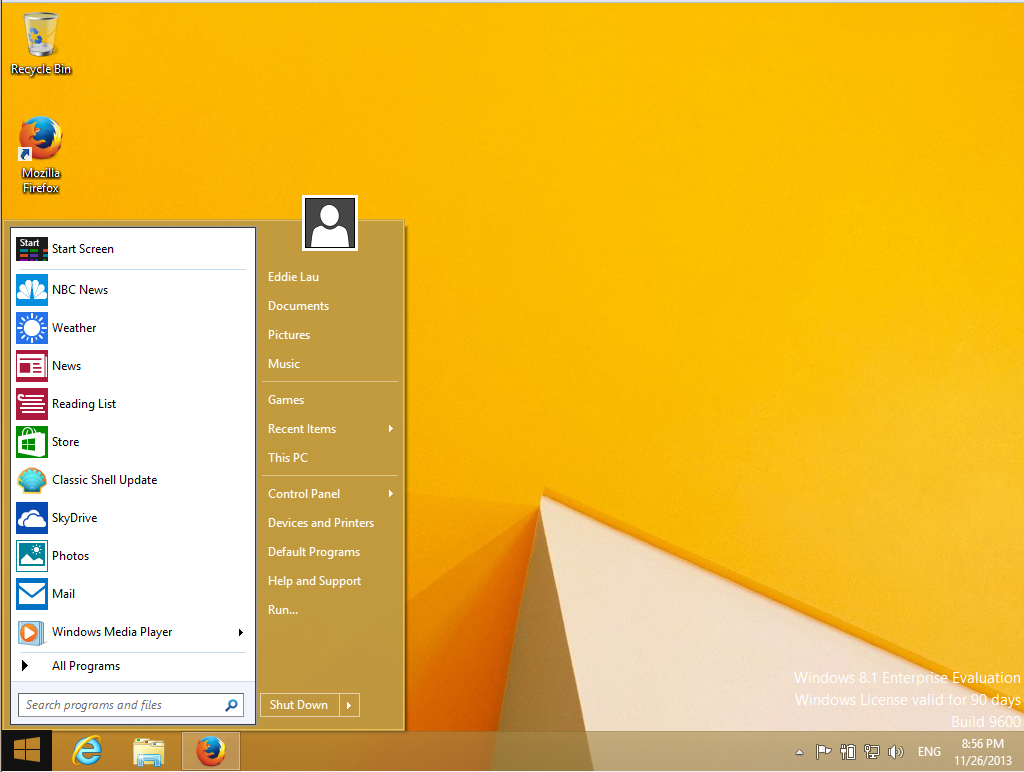
An open-source software called Classic Shell can be used to resume the Classic/Windows XP/ Windows Vista/Windows 7 style start menu in Windows 8/Windows 8.1. What you can achieve: Windows 7 style start menu Click on the start icon brings you to the start menu Clicking on the "Start Screen" shortcut at the top of the start menu brings you back to the tile start screen. Procedure Step 1: Download and install Classic Shell . Step 2: Download the Windows 8 style image from this forum post . Step 3: Go to Classic Start Menu Settings under Classic Shell installation Step 4: Under "Start Menu Style" tab, select your favorite start menu style. Check the "Replace the Start button" box. Select "Custom". Then click on the "Pick Image..." button and select the image you have just downloaded in Step 2. Step 5: If you are using Windows 8.1 and you'd like to boot to the Desktop right at the start, click on the "Show all set...

Open source pdf editing in Windows

pdf split and merge : Splitting and merging pdf files pdf Edit : Edit pdf content Briss : crop an area of pdf and become another pdf

Delete recovery partition of a hard disk in Windows

Step 1. Open the Diskpart application by either typing in "Diskpart" (without the quotation marks) into the search, or type "Diskpart.exe" into Run by pressing the Windows key + R. Step 2. Now with Diskpart open, you must enter the following command lines: I. Type "list disk" without the quotation marks and press enter. II. Type in "select disk 0" and press enter. III. Then type in "list partition" and press enter. IV. Then type in "select partition x" x=the recovery partition you wish to delete (i believe it's 1, i dont recall) replace x with the recovery partition number and press enter. V. Then finally type in "delete partition override" and press enter. Reference

Play octoshape stream on windows with VLC player

Install windows octoshape plugin at http://www.octoshape.com/files/octosetup.exe Install VLC player at http://www.videolan.org/vlc/download-windows.html . Use the installer so later octoshape can pick it as the preferred player. (Updated 12/26/2010: A dirty way to make sure windows associate all media files to vlc player is to explicitly set in vlc's Tool -> Preferences -> Interface -> Set up associations, select all file types. Then in Octoshape Settings (right click on the Octoshape system tray icon and select Settings), select use "System player") Create a bat file named stream.bat. In Windows XP, type in the bat file. "C:\Documents and Settings\ [user]\Application Data\Octoshape\Octoshape Streaming Services\OctoshapeClient.exe" -url:[octostream] In Windows Vista/7 "C:\Users\[user] \AppData\Roaming\Octoshape\Octoshape Streaming Services\OctoshapeClient.exe" -url:[octostream] Replace [user] with your current user name, [octostream] w...

Remove ads from Windows Live Messenger

Get annoyed with the ads in the official Windows Live Messenger, but don't want to switch to other IM clients? Here are some simple steps you can take to minimize the disturbance. They do not require use of any other external programs. Open Internet Explorer. From the main menu, select Tools -> Internet Options . Under the Security tab, click on the Internet icon. Set the security level of the zone to be High . This blocks advertisements from showing in the Windows Live Messenger main window. Click on the Restricted Site icon. Press the Sites button. Add http://rad.msn.com . Open \Windows\Systems32\drivers\etc\hosts.ics . Add the following line at the end of the file. 127.0.0.1 rad.msn.com (If it happens you cannot save your change, try this .) Then your message window will be free of text advertisement. Reference: here