Posts

Download RTHK audio programme archive
Image
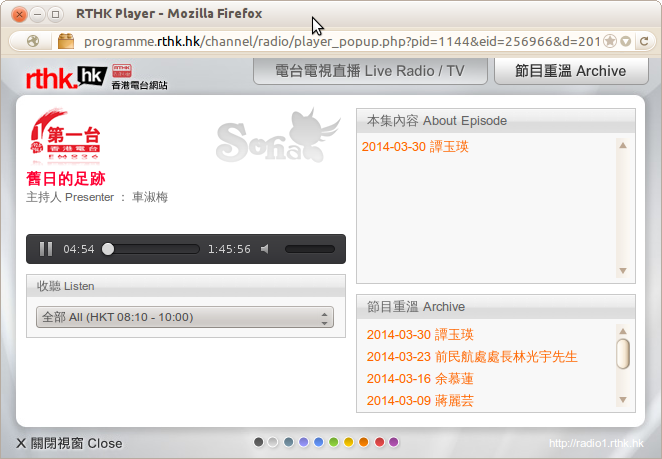
In the following, I will show you how we can download RTHK audio programmes through its archive directly. Here we assume you have install ffmpeg . 1) Visit here to locate the programme that you want to download. Go to the page where you can play the sound file. 2) Right click on the webpage so you can view the source code. For example, with Interent Explorer, you should choose the "View Source" item. 3) Locate the value of hlsStreamUrl[0] . In the following example, it is " http://stmw2.rthk.hk/aod/_definst_/radio/archive/radio1/hkfootpath/mp3/mp3:20140330.mp3/playlist.m3u8 " 4) At where you can access ffmpeg executable, run the following command: ffmpeg -i [hlsStreamUrl[0]] [output_filename] In the following example, it is: ffmpeg -i http://stmw2.rthk.hk/aod/_definst_/radio/archive/radio1/hkfootpath/mp3/mp3:20140330.mp3/playlist.m3u8 output.mp3 Reference: here P.S. RTHK mp3 player: http://rthk.hk/mp3/player.htm

Charamel/Silvermel for Firefox/Thunderbird 24 or up

Image
Install the " Disable Add-on Compatibility Checks " plugin to skip the plugin compatibility check. Then you can install and use the Charamel/Thunderbird plugin even though it is yet compatible with Firefox/Thunderbird 24 or up. Firefox: https://addons.mozilla.org/en-US/firefox/addon/checkcompatibility/ Thunderbird: https://addons.mozilla.org/en-us/thunderbird/addon/checkcompatibility/

Enable network in Android x86 on VirtualBox

1) Use VirtualBox bridged network 2) Use eeepc ISO at http://android-x86.googlecode.com/files/android-x86-4.0-RC2-eeepc.iso 3) Make sure when you install Android x86 on the Virtual Disk, install as read/write. 4)  Inside Android, press Alt + F1 and then su -, then vi /etc/init.sh. Add the following line somewhere at the top "setprop net.dns1 8.8.8.8". Then reboot -n. 5) wifi still not working, but browser can go online. Reference

Set a Windows XP SP3 machine as an wifi hotspot

Image
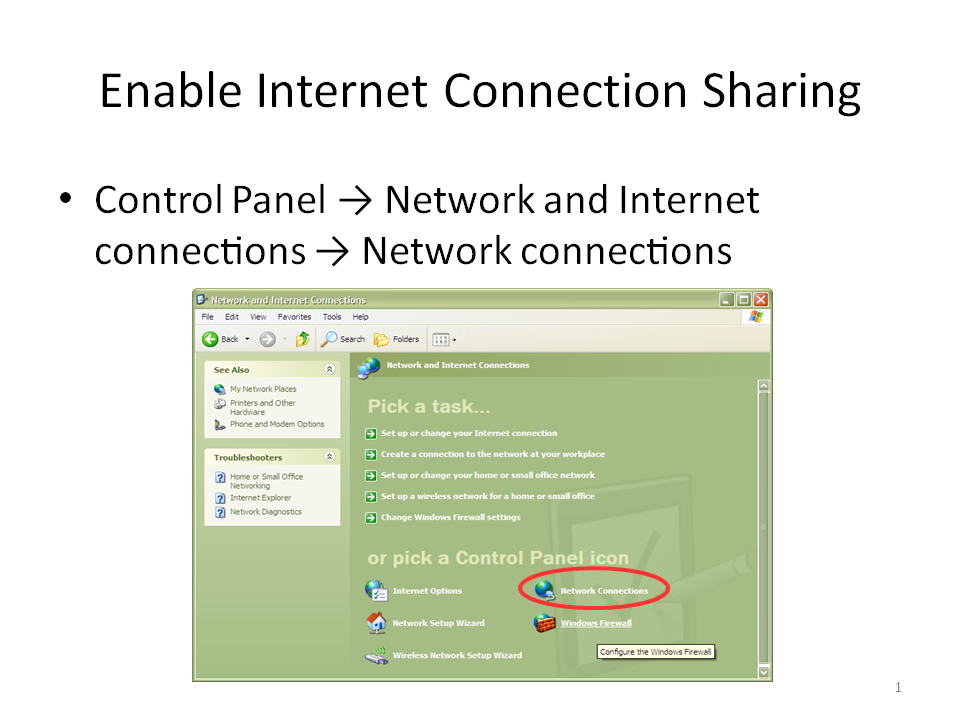
There are quite a few guides on the web that discuss how to share your Ethernet/cable Internet connection with your wifi card on a Windows XP machine, essentially turning a Windows XP machine into a wifi hotspot. However, they have not been updated for the latest Windows XP SP3, which introduces some changes on its Windows Firewall component. This blog post aims to bridge this gap by listing the procedure that is proved to work in this situation. There are altogether four steps: Enable Internet Connection Sharing of your Ethernet/cable connection Set up the wireless network connection a hotspot Start the wireless hotspot Connect to the wireless hotspot

Useful open-source Desktop customization tools

Image
Rainmeter with Omnimo UI (Make pre-Win8 Desktop looks like Windows 8) TICKR (add a news ticker to your Windows/Linux Desktop) Result:

Use mutt to send email in Linux, hiding the real email address

Create a file .muttrc at home directory with the following content: set realname="Eddie" set from="Eddie@unknown.domain" set use_from=yes The command to send email: echo "Email content" | mutt -e 'my_hdr From:Eddie@unknown.domain' -a AttachedFile -s "Email subject" -- recipient@unknown.domain

Change video resolution and format with ffmpeg

ffmpeg -i input.mpeg -s 320x240 output.mpeg ffmpeg -i input.mp4 -s 320x240 output.mpeg   Ref