Posts

Minimal podman-py code that starts a container

#!/usr/bin/env python3 import json from podman import PodmanClient with PodmanClient(base_url="unix:///run/podman/podman.sock") as client:     #image = client.images.pull('nginx')     mounts = [ {"type": "bind", "source":"/home/opc", "target": "/home/opc", "read_only": False}]     client.containers.run('nginx', name="nginx", detach=True, privileged=True, mounts=mounts)

A-train: All Aboard! Tourism tricks

Saves Basic Default save location C:\Program Files (x86)\Steam\userdata\<steam_user_id>\1685460\remote\ Directory structure scenario\ <-- registered/downloaded scenarios    slot00\    slot01\    ... slot00\ <- auto-save slot01\ <- in-game save 01 slot02\ <- in-game save 02 ... NOTE: The official scenarios in   <Steam Library Folder>\steamapps\common\A-Tourism\A-Tourism_Data\StreamingAssets\  are following the same pattern. Workshop items location:  <Steam Library Folder>\steamapps\ workshop\content\1685460\ <Steam Library Folder>\steamapps\ workshop appworkshop_1685460.acf Compatibility between the Switch and Steam versions of the saves The scenario slots and typical save slots of the Switch version could be used by the Steam version (at least with the latest build as at Feb 20, 2022). The reverse is NOT true. Scenarios and progressed saved with the Switch game version 1.1.3 can NO LONGER be used on Steam. ...

Set up OCI Oracle Linux VMs with xrdp, sound and ibus IMEs

Step 1: Start an Oracle Linux 7 instance on OCI Choose Oracle Linux as the image type as it has the best library support. For the VCN the instance uses, make sure in its ingress security rule tcp/3389 ingress is allowed. Step 2: Install Graphical Desktop and xrdp Basically follow the instruction at https://www.e2enetworks.com/help/knowledge-base/how-to-install-xrdp-on-centos-and-redhat-linux-8-7/ At the step concerning enabling epel, simply go to /etc/yum.repos.d/ and enable the epel repo. At the end, sudo to root and create a password for the opc user. Step 3: Install xrdp-sink Follow the instruction at  https://github.com/neutrinolabs/pulseaudio-module-xrdp/wiki/Build-on-CentOS-7.x Step 4: Install IMEs sudo apt install fonts-noto-cjk fonts-noto-color-emoji dbus-x11 sudo apt install ibus ibus-table-cangjie5 ibus-anthy

Set up Windows Subsystem for Linux on Windows 11

Since Windows 11 Build 22000, the Linux subsystem on Windows supports GUI with audio. This greatly raises the usefulness of the Linux system. In the following we will look at how to set up the Linux subsystem with Chinese support. Step 1: Install Windows Subsystem for Linux. Follow the instruction at  https://docs.microsoft.com/en-us/windows/wsl/tutorials/gui-apps Step 2: Set up fonts and input method Install the necessary languages: sudo nano /etc/locale.gen Remove the comment sign next to the languages you wish to install. sudo locale-gen Install necessary fonts and ibus:  sudo apt install fonts-noto-cjk fonts-noto-color-emoji dbus-x11 sudo apt install ibus ibus-table-cangjie5 ibus-mozc Set up ibus service im-config - OK, Yes, ibus, OK, OK dbus-launch ibus-daemon -drx dbus-launch ibus-setup At General -> Keyboard Shortcuts, you may want to set the input method switch shortcut to <shift>space since the original <super>space conflicts with the Windows one....

Install "Hong Kong Mahjong for Windows XP" on WIndows 10 32-bit and 64-bit

Image
This article will talk about how to install "Hong Kong Mahjong for Windows XP" on WIndows 10 32-bit and 64-bit. When you try to install "Hong Kong Majong for Windows XP" on Windows 10 (e.g. by double-clicking the hkmj1280_inst.EXE file on the CD drive), you may see an error saying that the app can't run on your PC.  In fact, if you try to run the exe file on cmd, you will see the root cause: Unsupported 16-Bit Application. To overcome this problem, you will need to enable 16-bit applications on your Windows 10. Depending on whether your windows is 32-bit or 64-bit, you will need to enable certain windows feature or use a helper program. Determine whether your Windows 10 is 32-bit or 64-bit. Select the Start button usually at the bottom left corner, then select Settings > System > About. Under "Device specfication", check the field "System type". If it is a 32-bit system, you shall see "32-bit operating system". If it is a 64-b...

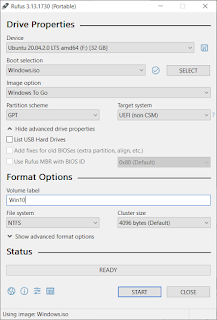
Run Windows 10 on Mac using an external SSD/USB drive

Image
This article shows how you could get a Windows 10 run on Mac using an external SSD/USB drive. I use a Macbook Pro 2020 13 inch to check the procedure. On your Mac, start "Boot Camp Assistant". In the menu bar, Click on "Action" -> "Download Windows Support Software". Have the software downloaded to a storage location for example a USB drive. Shut down your Mac. Use a Windows machine to download Windows 10 ISO at https://www.microsoft.com/en-us/software-download/windows10. Use the Rufus tool available at https://rufus.ie/ to create a Windows 10 USB-to-Go SSD/USD drive.  Once the action is completed, copy the Windows Support Software folder you get in the previous step to root folder of the Windows 10 USB to Go SSD/USD drive. Insert the USB-to-Go SSD/USD drive to your Mac, together with a USB keyboard and a USB mouse. Turn on the Mac with the "Option" key held. Then you could select which drive to boot in. Select the EFI one. Follow the on-scree...

Using PS1 Densha de Go! controller on PS1/PS2 emulator of PlayStation 3

Image
  Using an Arduino Leonardo and a Titan Two, you could connect your PS1 Densha de Go! controller to your PlayStation 3 to play PS1/PS2 Densha de Go! games that supports the controller. Items needed Either {Arduino Leonardo (or equivalent). Note that it has to have at least one 3.3V power output. 6 male-to-female jumper cables} or a  Mayflash SS/N64/PS2 Controller Adapter for PC USB A Densha de Go! controller A Titan Two A few micro USB cables A PlayStation 3 with controller Supported PlayStation 1/2 Densha de GO!! games Provide the PS1 Densha de Go! controller with an USB interface Check the respective section in  https://tylau0.blogspot.com/2020/12/using-ps1-densha-de-go-controller.html Set up Titan Two to convert the signals of the Densha de Go! controller to the ones that the game expects Create a gpc file with content shown at https://github.com/tylau0/DenGo/blob/main/DenshaDeGoPS1ToPS3.gpc  (Arduino approach), or  https://github.com/tylau0/DenGo/blob/main/D...